Login, Profile & Preferences
Login
- Open RepliMap (see Installation if you have not installed it yet).
- On the Login screen, enter the e-mail and password provided via email.
- Use Remember me if you want the app to keep you logged in on this machine (only on trusted devices).
- If you forgot your password, use Forgot Password? and follow the instructions, or contact support.
New users without credentials should use Contact Support on the login screen or reach out through the RepliMap Website.
User Profile Menu
After you log in, your name and avatar appear in the top-right of the window. Select them to open the profile menu.
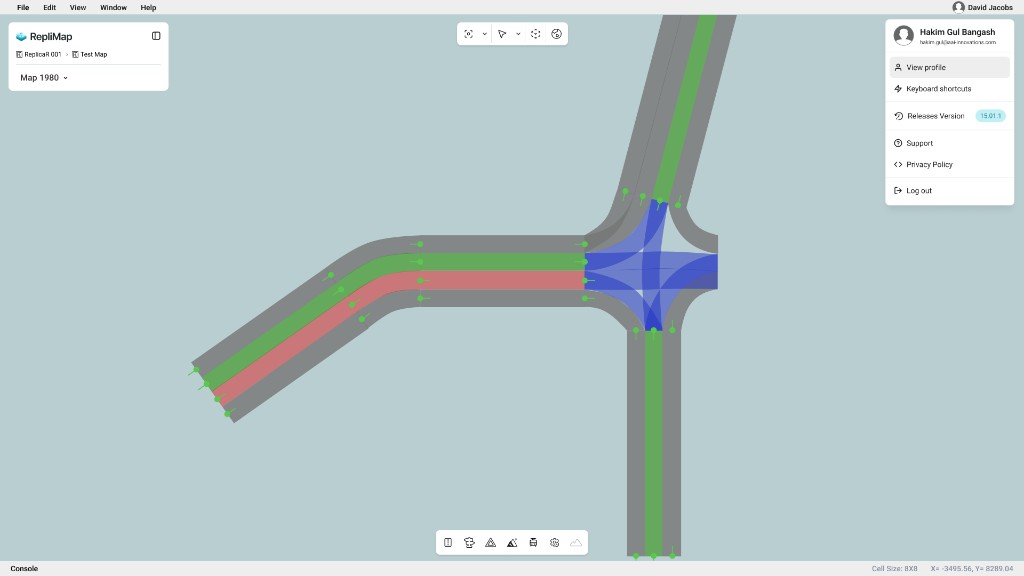
Typical entries include:
| Item | Purpose |
|---|---|
| View profile | Open your account details and profile photo. See View Profile below. |
| Preferences | Change theme, language, instruction panels, and 3D scenery camera speed. See Preferences below. |
| Keyboard shortcuts | Links to the shortcut pages in the documentation. The shortcuts help speed up your mapping journey. |
| Releases / version | See the RepliMap versions available on the download portal. |
| Support | Links to help resources or contact options. |
| Privacy Policy | Legal information for the product. |
| Log Out | End your session on this computer. |
View Profile
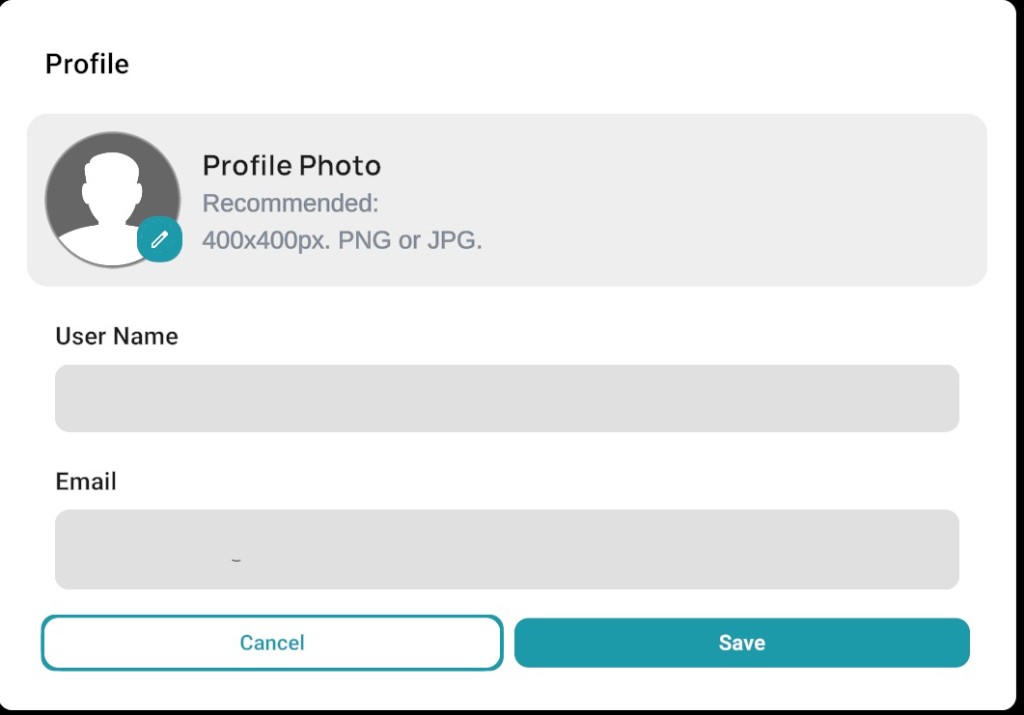
Select View profile from the profile menu to open your account details.
You can update your profile photo here (recommended size: 400×400 px, PNG or JPG). User name and email are shown for reference only and cannot be changed in the app.
Preferences
Open Preferences from the User Profile menu: click on your name or avatar in the top-right corner, then select Preferences from the dropdown.
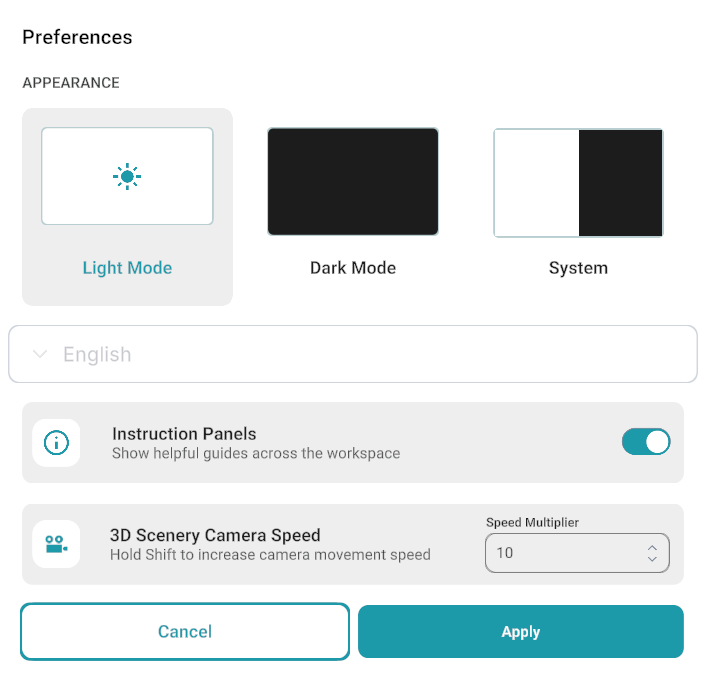
In the Preferences window, you can configure:
- Appearance — Switch between Light, Dark, and System theme.
- Language — Choose the display language. Currently not Available
- Instruction Panels — The Instruction Panel toggle allows users to enable or disable instructional tooltips for the Bottom Toolbar.
- 3D Scenery Camera Speed — Camera movement speed can be adjusted in Preferences, with support up to 10x for improved navigation in 3D scenes. Hold Shift to increase camera movement speed while navigating.
- Traffic Rule — Displays a confirmation dialog when switching to the Left-Hand Traffic (LHT) rule. See Left Hand Traffic Rule (LHT).
Note
The current beta does not yet include full multi-language support and keyboard shortcuts. Both are planned for an upcoming release.