Link & Snap
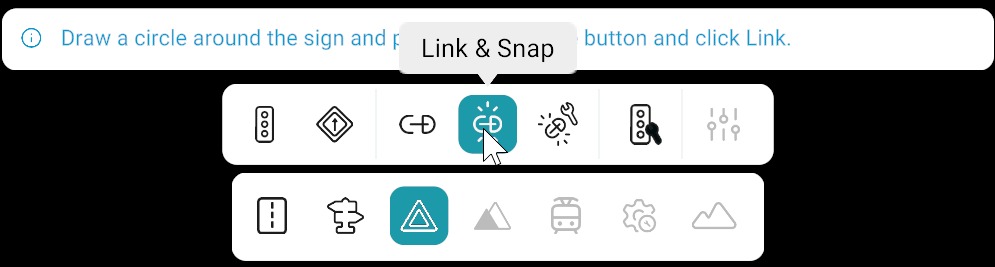
The Link & Snap feature allows you to connect multiple Traffic Signs and Traffic Lights to a pole and automatically position them in a structured way. After linking, you may still need to adjust the Z-offset for proper vertical placement of all items.
For linking without snapping, see Link. For automatic vertical alignment, see Link, Snap & Adjust.
How to Use Link & Snap
Follow these steps:
- Activate the Link & Snap tool from signal bar.
- Draw circular selection around the desired pole, traffic signs, traffic lights.
- Click on Link button from right panel.
All selected Traffic Signs and Traffic Lights will be linked and automatically snapped to the Pole.
After Linking
Adjust Z-offset for each linked sign or light to fine-tune height on the pole. Horizontal placement is handled by the snap step.