Traffic Controllers
Traffic Controllers manage traffic signals within a junction by grouping multiple traffic lights under a single controller. They define which signals belong to a specific junction, making it easier to organize, monitor, and coordinate signal behavior and timing.
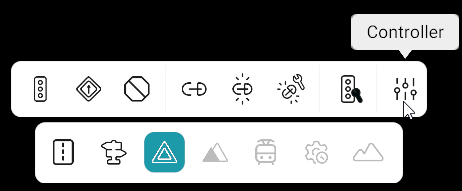
Open the tool from the Signals toolbar, then work in the Controllers panel on the right.
How to Use Controllers
| Step | Action |
|---|---|
| 1 | Select Signals from the bottom toolbar. |
| 2 | Click Controllers from the Signals toolbar. |
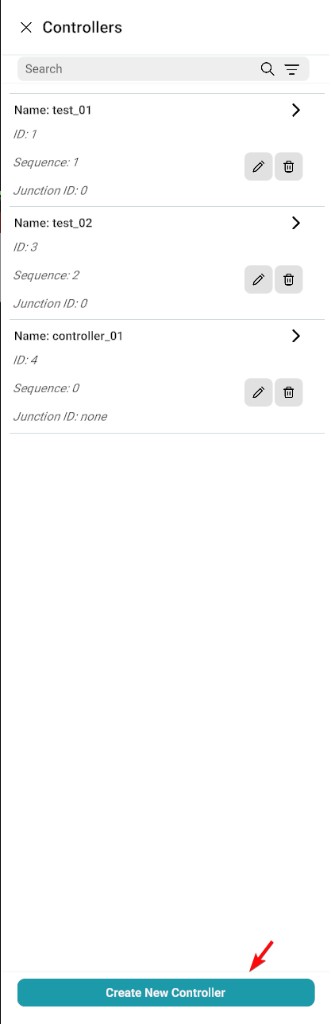
| 3 | The Controllers panel opens on the right side of the canvas. |
Controllers panel
Manage Controllers
| Action | Steps |
|---|---|
| Create |
|
Create New Controller dialog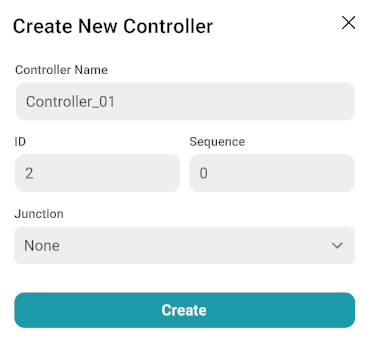
|
|
| Edit |
|
Edit controller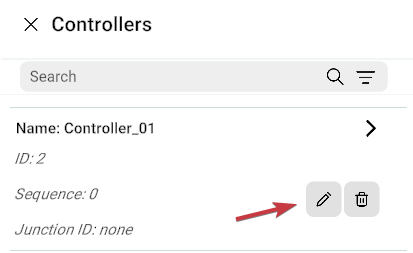
|
|
| Delete | Click the Delete icon in the list, or open controller details and click Delete Controller. |
Delete icon in controller list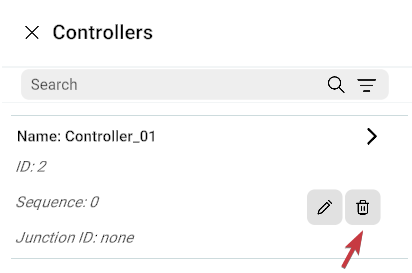
|
|
Delete Controller from details panel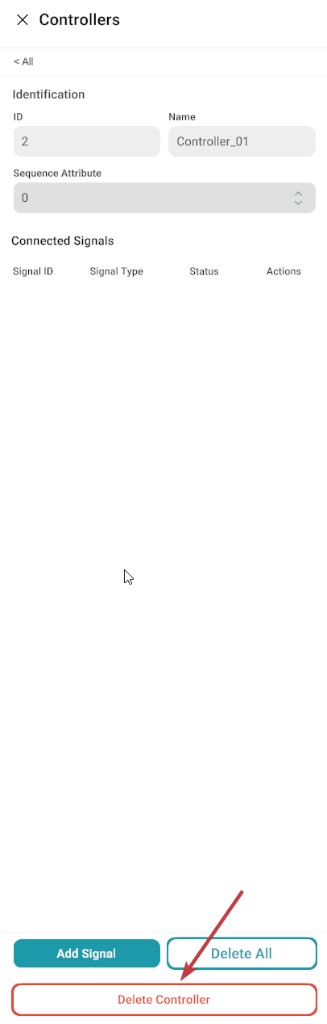
|
|
Link Signals to a Controller
Open the required Controller from the Controllers panel to display its details.
| Method | Steps | Result |
|---|---|---|
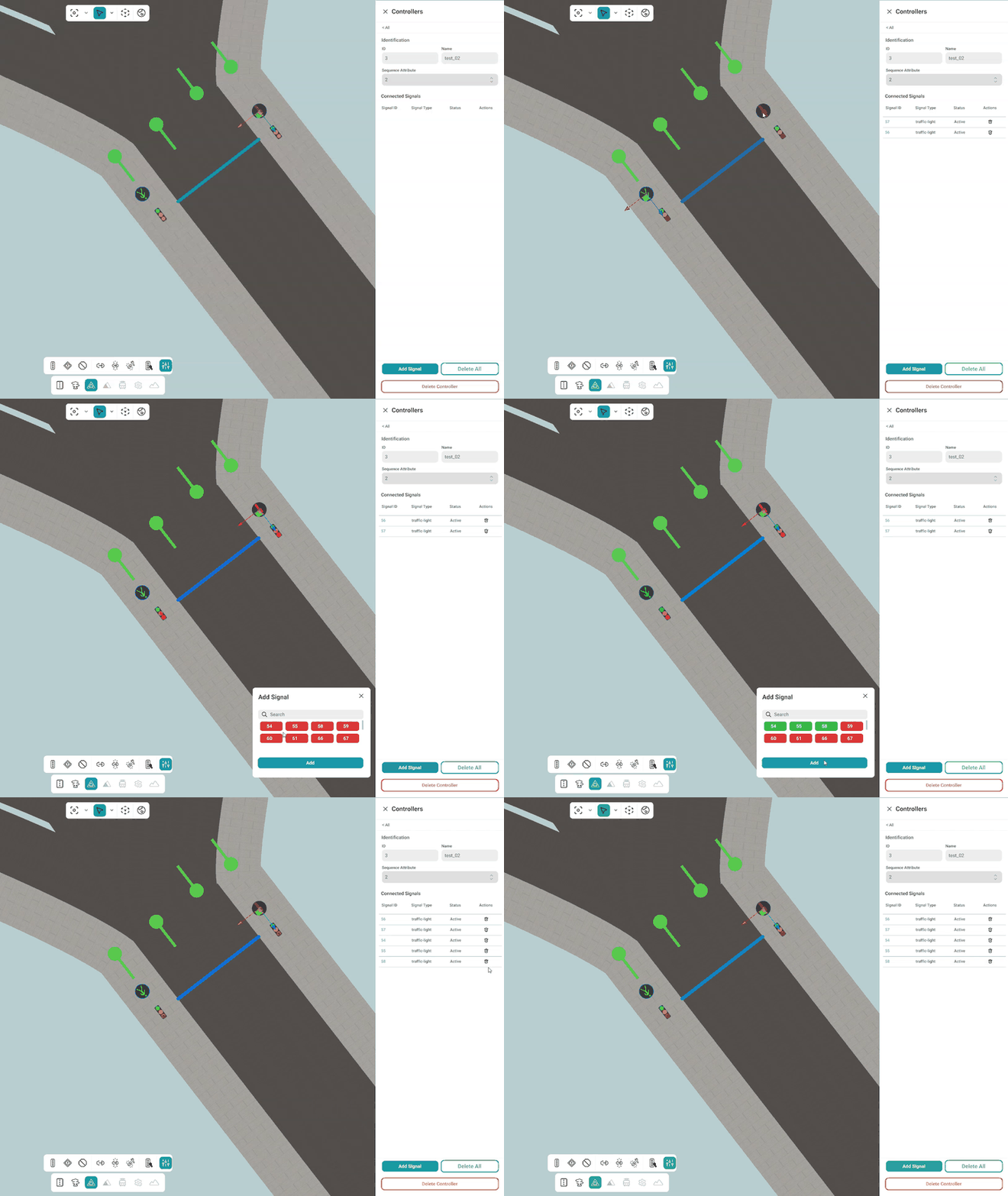
| Add Signals from Signal List | 1. Click Add Signal. 2. The Add Signal window appears. 3. Select one or more traffic lights. 4. Click Add. |
Selected traffic lights are linked to the controller. |
| Add Signals from Canvas | 1. Open the Controller Details panel. 2. Select the desired traffic light(s) directly from the canvas. |
Selected traffic lights are automatically linked to the controller. |
Link signals demo
Note
Multiple traffic lights can be linked to a single controller.
Remove Signals from a Controller
| Action | Steps | Result |
|---|---|---|
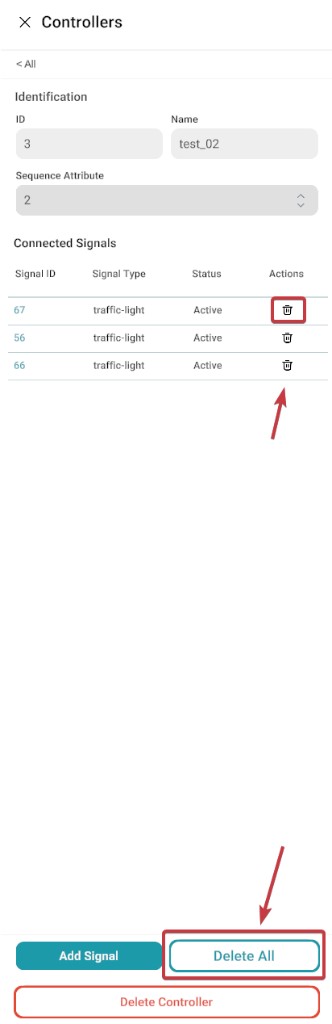
| Remove one signal | Click the Delete icon beside a linked traffic light. | That signal is unlinked from the controller. |
| Remove all signals | Click Delete All. | All linked traffic lights are removed from the controller. |
Remove signals
Search and Filter
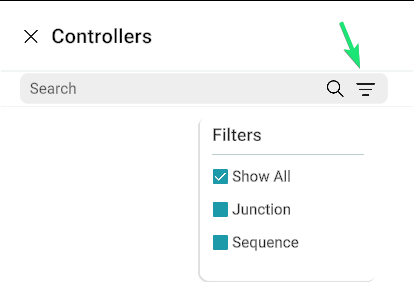
| Tool | Options | Behaviour |
|---|---|---|
| Filter | Show All | Displays all controllers. |
| Junction | Displays controllers with an assigned Junction ID. | |
| Sequence | Displays controllers with an assigned Sequence ID. | |
| Search | Controller Name, Sequence ID, Junction ID | The list updates automatically as you type. |
Search and filter
Save Validation
Before saving the map, the system validates all configured controllers.
| Check | What happens |
|---|---|
| Linked signals required | Every controller must have at least one linked traffic light. |
| No linked signals | If a controller has no assigned traffic lights, a warning message is displayed. |
| Auto-removal | Controllers without linked traffic lights are automatically removed during the save process. |
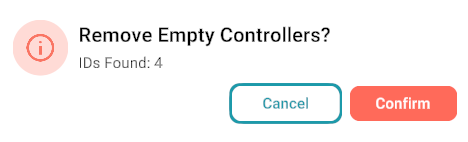
Remove empty controllers dialog