Object Properties Panel
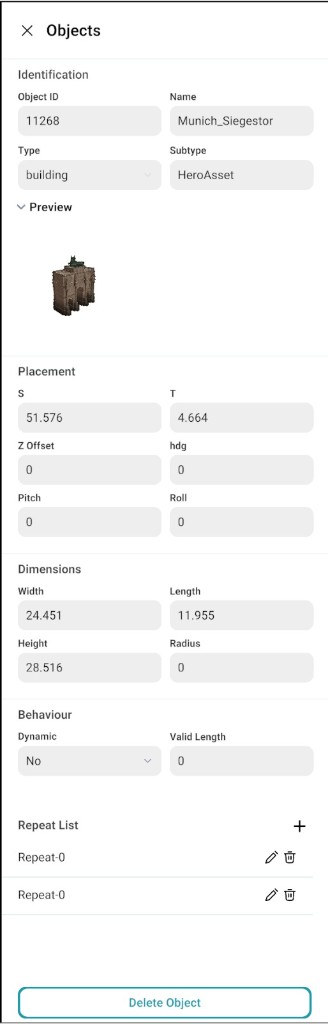
When an object is selected, the Object Properties Panel opens on the right side of the editor. The available sections and fields are dynamically displayed based on the selected asset type.
Object properties panel screenshot
Sections in the Panel
Identification
| Field | Purpose |
|---|---|
| Object ID | Internal identifier for this instance (read-only in normal editing). |
| Name | Asset or instance name as shown in the editor. |
| Type | High-level category (for example pole); often chosen from a dropdown. |
| Subtype | Finer classification for rules, export, or filtering (for example bollard). |
Preview
| If present, Preview expands to a 3D thumbnail of the selected asset so you can confirm the prop before editing numeric fields. |
Placement
| Field | Purpose |
|---|---|
| S | Station along the placement reference (longitudinal position), in map units. |
| T | Lateral offset from that reference (left/right), in map units. |
| Z Offset | Vertical offset measured from the road reference line. |
| hdg | Heading (yaw), in degrees. |
| Pitch | Tilt about the lateral axis, in degrees. |
| Roll | Twist about the longitudinal axis, in degrees. |
For assets placed in world coordinates instead of road-relative S/T, the editor may show X/Y or equivalent fields instead—same meaning as elsewhere in the map.
Dimensions
| Field | Purpose |
|---|---|
| Width | Extent across the object's width, when editable. |
| Length | Extent along the object's length, when editable. |
| Height | Vertical extent. |
| Radius | Radial size for cylindrical or capsule-style props, when used. |
Not every asset exposes all dimension fields; fixed templates may keep some values at zero or hide them.
Behaviour
| Field | Purpose |
|---|---|
| Dynamic | Whether the object participates in dynamic simulation behaviour (for example No for static props). |
| Valid length | Length used when behaviour or placement rules depend on a valid segment (often 0 when unused). |
Exact behaviour options depend on the asset and product version.
Repeat List
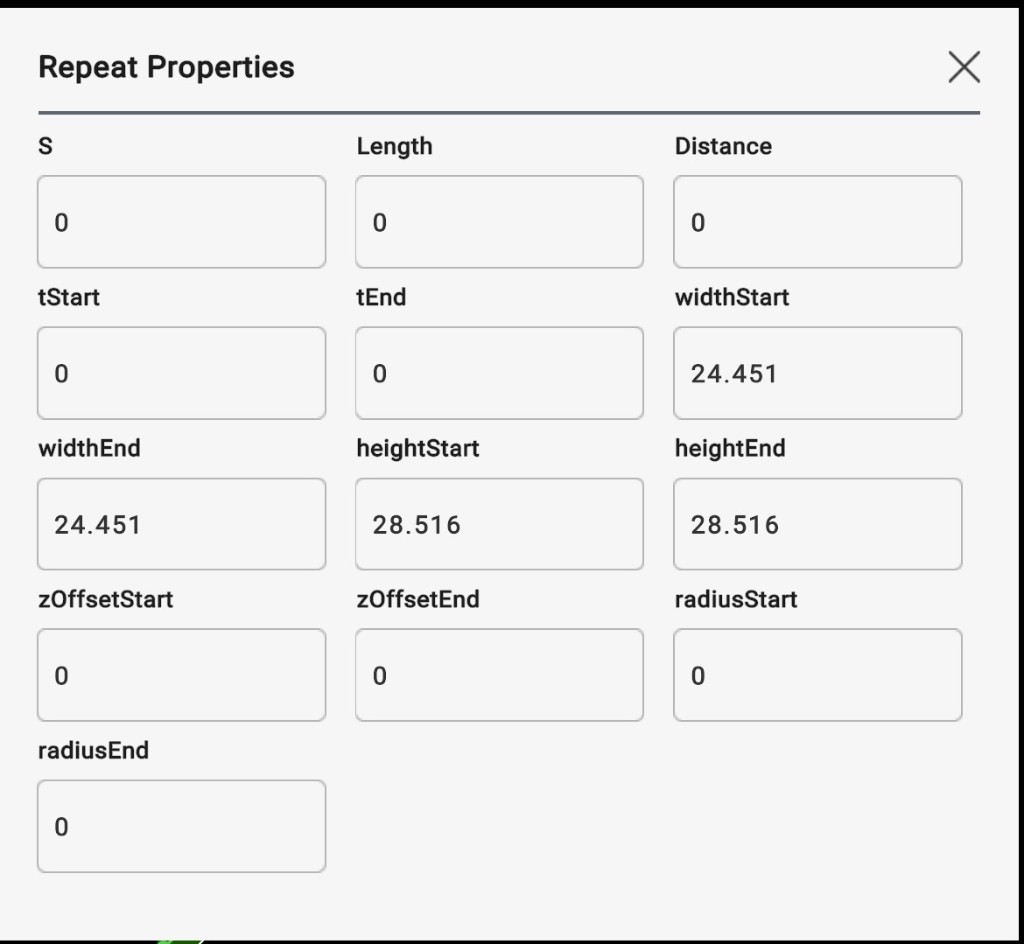
The Repeat list adds entries for objects that are placed multiple times along a path. Each entry controls how one instance is repeated and lets its settings be adjusted separately.
Below is an example of the Repeat List panel, showing how each repeated instance is set and managed.
Repeat properties panel screenshot
Delete Object
Delete an object using the Delete Object option at the bottom of the panel, or by using the editor's delete action for the selected object. This removes the object from the scene.
The example below shows the property panel for Munich_Siegestor (building, HeroAsset).