Traffic Lights
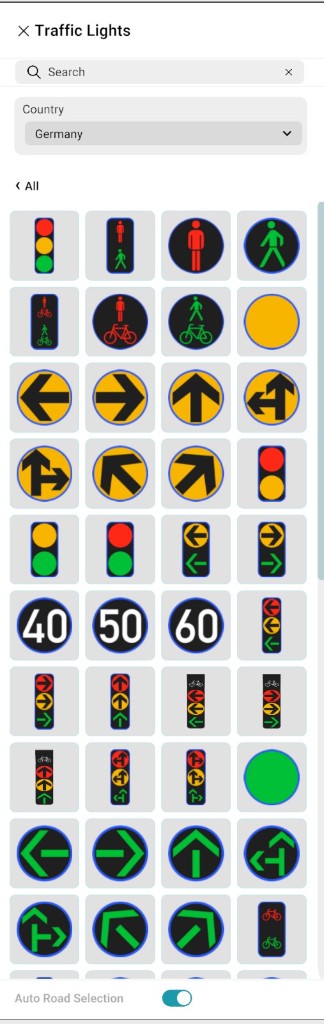
Traffic lights can be added to the map using the Traffic Lights tool. This tool includes a Country selection option, which lets you choose the appropriate Traffic Light type based on a specific country. Traffic Light types and subtypes follow the ASAM OpenDRIVE standard.

How to Add Traffic Lights
Follow these steps to place a Traffic Light:
- Select the Traffic Lights tool.
- Choose the required Country and Traffic Light type.
- Place the Traffic Light on the map using drag and drop.
Auto Road Selection
The Auto Road Selection tool controls which road receives the Traffic Light when you place it.
| Setting | Behaviour |
|---|---|
| Enabled | Traffic Lights are automatically placed on the nearest road. |
| Disabled | Select the road using Right-Click before placing the Traffic Light. |
For complex junctions where automatic detection may be wrong, turn Auto Road Selection off, Right-Click the road you want, then place the traffic light with drag and drop.
After Placement
Click on placed Traffic Light on the canvas to edit it in the Signal properties panel. The panel uses the same sections and fields described on that page.
Traffic Lights panel screenshot