Lane Height
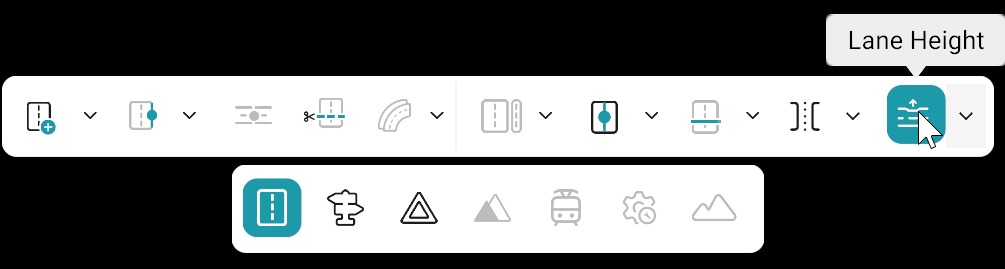
The Lane height tool adds height values to the inner and outer corners of a lane so the selected lane can be elevated relative to other lanes on the road.
Lane Height Anchors
Lane height anchors add and control height transitions along the selected lane.
- Several anchors can exist on the same lane.
- Each anchor stores separate Inner and Outer height values.
- You can select an anchor and drag it along the lane to move its position.
- When the Lane height tool is active, all lane height anchors on the relevant lane become visible.
Enable the Lane Height Tool
You can turn on lane height in either of the following ways.
1. From the Lane Property Panel
- Open the Lane property panel (with the target lane selected).
- Go to the Advanced tool section.
- Enable the Lane height tool.
- Add an anchor at the desired position on the selected lane.
2. From the Road Toolbar
- Triple-click the target lane on the canvas so lane selection is active (see selection on the canvas).
- The Lane height tool becomes available in the Road toolbar.
- Select the Lane height tool.
- Single left-click on the desired location on the lane to place a lane height anchor.
Add or Delete Lane Height Anchors
A dropdown arrow next to the Lane height icon in the Road toolbar opens a popup menu:
| Option | Purpose |
|---|---|
| Add lane height | Place new anchors (default mode). |
| Delete lane height | Remove existing anchors. |
By default, the tool is set to Add lane height mode.
Delete a Lane Height Anchor
- Choose Delete lane height from the dropdown menu.
- Click the lane height anchor you want to remove.
Open the Lane Height Panel
When the Lane height tool is active:
- All lane height anchors on the selected lane are visible.
- Left-click a lane height anchor to open the Lane height panel.
Lane Height Panel
The Lane height panel exposes the following properties.
| Property | Description |
|---|---|
| Inner | Height offset for the inner corner of the lane. |
| Outer | Height offset for the outer corner of the lane. |
| Linked | Keeps Inner and Outer height values synchronised. |
Linked Height Values
- By default, Linked is enabled—both Inner and Outer stay the same.
- To use different inner and outer heights (for example a sloped or tilted lane surface):
- Disable Linked.
- Enter separate values in Inner and Outer.
Lane Height Toolbar Functions
Extra actions appear when the Lane height toolbar is active.
Apply Default Height
Applies the default lane height values to all lane height anchors on the selected lane.
| Default | Value |
|---|---|
| Inner | 0.12 |
| Outer | 0.12 |
Reset All Height
Sets Inner and Outer on all lane height anchors for the selected lane to 0.
Copy Height to Current Group
If the selected lane type is Curb, copies lane height values to all lanes on the right side of the selected lane.
Copy Height to Both Groups
If the selected lane type is Curb, copies lane height values to:
- All lanes on the right side of the selected lane.
- All lanes on the left side of the selected lane.
Editing Tips
- Use lane height anchors for smooth elevation transitions along the road.
- Keep Inner and Outer linked for uniform lane elevation.
- Turn Linked off when you need sloped or tilted lane surfaces.
- After changing heights, check road continuity near junctions and adjacent lanes.
- Use Reset all height before redesigning lane elevation.